# Quick Start
Welcome to the React documentation! This page will give you an introduction to 80% of the React concepts that you will use on a daily basis.
### You will learn
- How to create and nest components
- How to add markup and styles
- How to display data
- How to render conditions and lists
- How to respond to events and update the screen
- How to share data between components
## Creating and nesting components[](https://react.dev/learn#components "Link for Creating and nesting components ")
React apps are made out of _components_. A component is a piece of the UI (user interface) that has its own logic and appearance. A component can be as small as a button, or as large as an entire page.
React components are JavaScript functions that return markup:
```javascript
function MyButton() {
return (
);
}
```
Now that you’ve declared `MyButton`, you can nest it into another component:
```javascript
export default function MyApp() {
return (
Welcome to my app
);
}
```
Notice that `` starts with a capital letter. That’s how you know it’s a React component. React component names must always start with a capital letter, while HTML tags must be lowercase.
Have a look at the result:
```javascript
function MyButton() {
return (
);
}
export default function MyApp() {
return (
Welcome to my app
);
}
```
The `export default` keywords specify the main component in the file. If you’re not familiar with some piece of JavaScript syntax, [MDN](https://developer.mozilla.org/en-US/docs/web/javascript/reference/statements/export) and [javascript.info](https://javascript.info/import-export) have great references.
## Writing markup with JSX[](https://react.dev/learn#writing-markup-with-jsx "Link for Writing markup with JSX ")
The markup syntax you’ve seen above is called _JSX_. It is optional, but most React projects use JSX for its convenience. All of the [tools we recommend for local development](https://react.dev/learn/installation) support JSX out of the box.
JSX is stricter than HTML. You have to close tags like ` `. Your component also can’t return multiple JSX tags. You have to wrap them into a shared parent, like a `
...
` or an empty `<>...` wrapper:
```javascript
function AboutPage() {
return (
<>
About
Hello there. How do you do?
);
}
```
If you have a lot of HTML to port to JSX, you can use an [online converter.](https://transform.tools/html-to-jsx)
## Adding styles[](https://react.dev/learn#adding-styles "Link for Adding styles ")
In React, you specify a CSS class with `className`. It works the same way as the HTML [`class`](https://developer.mozilla.org/en-US/docs/Web/HTML/Global_attributes/class) attribute:
```javascript
```
Then you write the CSS rules for it in a separate CSS file:
```javascript
/* In your CSS */
.avatar {
border-radius: 50%;
}
```
React does not prescribe how you add CSS files. In the simplest case, you’ll add a [``](https://developer.mozilla.org/en-US/docs/Web/HTML/Element/link) tag to your HTML. If you use a build tool or a framework, consult its documentation to learn how to add a CSS file to your project.
## Displaying data[](https://react.dev/learn#displaying-data "Link for Displaying data ")
JSX lets you put markup into JavaScript. Curly braces let you “escape back” into JavaScript so that you can embed some variable from your code and display it to the user. For example, this will display `user.name`:
```javascript
return (
{user.name}
);
```
You can also “escape into JavaScript” from JSX attributes, but you have to use curly braces _instead of_ quotes. For example, `className="avatar"` passes the `"avatar"` string as the CSS class, but `src={user.imageUrl}` reads the JavaScript `user.imageUrl` variable value, and then passes that value as the `src` attribute:
```javascript
return (
);
```
You can put more complex expressions inside the JSX curly braces too, for example, [string concatenation](https://javascript.info/operators#string-concatenation-with-binary):
```javascript
const user = {
name: 'Hedy Lamarr',
imageUrl: 'https://react.dev/images/docs/scientists/yXOvdOSs.jpg',
imageSize: 90,
};
export default function Profile() {
return (
<>
{user.name}
);
}
```
In the above example, `style={{}}` is not a special syntax, but a regular `{}` object inside the `style={ }` JSX curly braces. You can use the `style` attribute when your styles depend on JavaScript variables.
## Conditional rendering[](https://react.dev/learn#conditional-rendering "Link for Conditional rendering ")
In React, there is no special syntax for writing conditions. Instead, you’ll use the same techniques as you use when writing regular JavaScript code. For example, you can use an [`if`](https://developer.mozilla.org/en-US/docs/Web/JavaScript/Reference/Statements/if...else) statement to conditionally include JSX:
```javascript
let content;
if (isLoggedIn) {
content = ;
} else {
content = ;
}
return (
{content}
);
```
If you prefer more compact code, you can use the [conditional `?` operator.](https://developer.mozilla.org/en-US/docs/Web/JavaScript/Reference/Operators/Conditional_Operator) Unlike `if`, it works inside JSX:
```javascript
{isLoggedIn ? (
) : (
)}
```
When you don’t need the `else` branch, you can also use a shorter [logical `&&` syntax](https://developer.mozilla.org/en-US/docs/Web/JavaScript/Reference/Operators/Logical_AND#short-circuit_evaluation):
```javascript
{isLoggedIn && }
```
All of these approaches also work for conditionally specifying attributes. If you’re unfamiliar with some of this JavaScript syntax, you can start by always using `if...else`.
## Rendering lists[](https://react.dev/learn#rendering-lists "Link for Rendering lists ")
You will rely on JavaScript features like [`for` loop](https://developer.mozilla.org/en-US/docs/Web/JavaScript/Reference/Statements/for) and the [array `map()` function](https://developer.mozilla.org/en-US/docs/Web/JavaScript/Reference/Global_Objects/Array/map) to render lists of components.
For example, let’s say you have an array of products:
```javascript
const products = [
{ title: 'Cabbage', id: 1 },
{ title: 'Garlic', id: 2 },
{ title: 'Apple', id: 3 },
];
```
Inside your component, use the `map()` function to transform an array of products into an array of `
` has a `key` attribute. For each item in a list, you should pass a string or a number that uniquely identifies that item among its siblings. Usually, a key should be coming from your data, such as a database ID. React uses your keys to know what happened if you later insert, delete, or reorder the items.
```javascript
const products = [
{ title: 'Cabbage', isFruit: false, id: 1 },
{ title: 'Garlic', isFruit: false, id: 2 },
{ title: 'Apple', isFruit: true, id: 3 },
];
export default function ShoppingList() {
const listItems = products.map(product =>
{product.title}
);
return (
{listItems}
);
}
```
## Responding to events[](https://react.dev/learn#responding-to-events "Link for Responding to events ")
You can respond to events by declaring _event handler_ functions inside your components:
```javascript
function MyButton() {
function handleClick() {
alert('You clicked me!');
}
return (
);
}
```
Notice how `onClick={handleClick}` has no parentheses at the end! Do not _call_ the event handler function: you only need to _pass it down_. React will call your event handler when the user clicks the button.
## Updating the screen[](https://react.dev/learn#updating-the-screen "Link for Updating the screen ")
Often, you’ll want your component to “remember” some information and display it. For example, maybe you want to count the number of times a button is clicked. To do this, add _state_ to your component.
First, import [`useState`](https://react.dev/reference/react/useState) from React:
```javascript
import { useState } from 'react';
```
Now you can declare a _state variable_ inside your component:
```javascript
function MyButton() {
const [count, setCount] = useState(0);
// ...
```
You’ll get two things from `useState`: the current state (`count`), and the function that lets you update it (`setCount`). You can give them any names, but the convention is to write `[something, setSomething]`.
The first time the button is displayed, `count` will be `0` because you passed `0` to `useState()`. When you want to change state, call `setCount()` and pass the new value to it. Clicking this button will increment the counter:
```javascript
function MyButton() {
const [count, setCount] = useState(0);
function handleClick() {
setCount(count + 1);
}
return (
);
}
```
React will call your component function again. This time, `count` will be `1`. Then it will be `2`. And so on.
If you render the same component multiple times, each will get its own state. Click each button separately:
```javascript
import { useState } from 'react';
export default function MyApp() {
return (
Counters that update separately
);
}
function MyButton() {
const [count, setCount] = useState(0);
function handleClick() {
setCount(count + 1);
}
return (
);
}
```
Notice how each button “remembers” its own `count` state and doesn’t affect other buttons.
## Using Hooks[](https://react.dev/learn#using-hooks "Link for Using Hooks ")
Functions starting with `use` are called _Hooks_. `useState` is a built-in Hook provided by React. You can find other built-in Hooks in the [API reference.](https://react.dev/reference/react) You can also write your own Hooks by combining the existing ones.
Hooks are more restrictive than other functions. You can only call Hooks _at the top_ of your components (or other Hooks). If you want to use `useState` in a condition or a loop, extract a new component and put it there.
## Sharing data between components[](https://react.dev/learn#sharing-data-between-components "Link for Sharing data between components ")
In the previous example, each `MyButton` had its own independent `count`, and when each button was clicked, only the `count` for the button clicked changed:
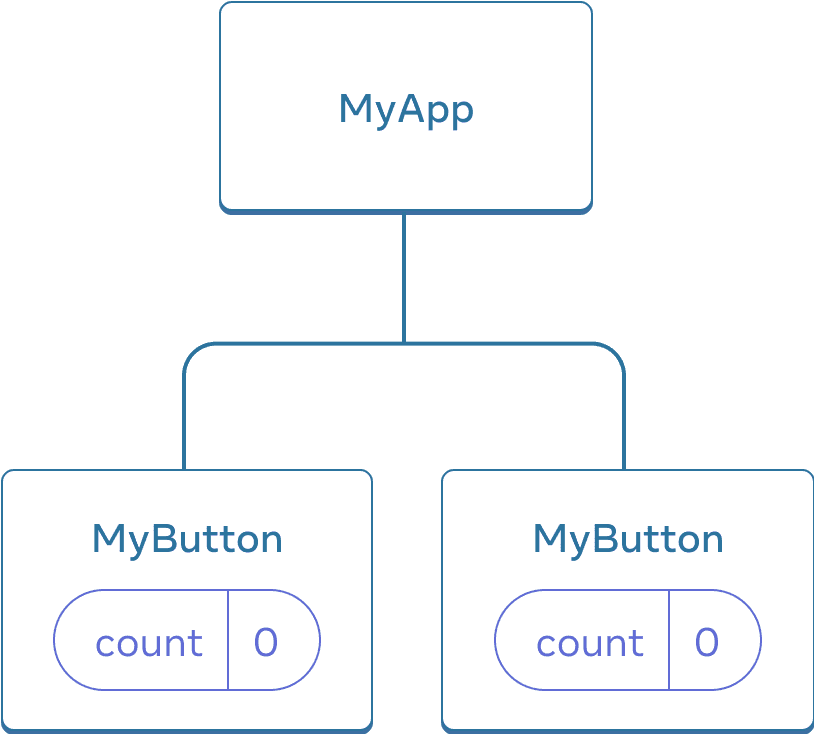
Initially, each `MyButton`’s `count` state is `0`
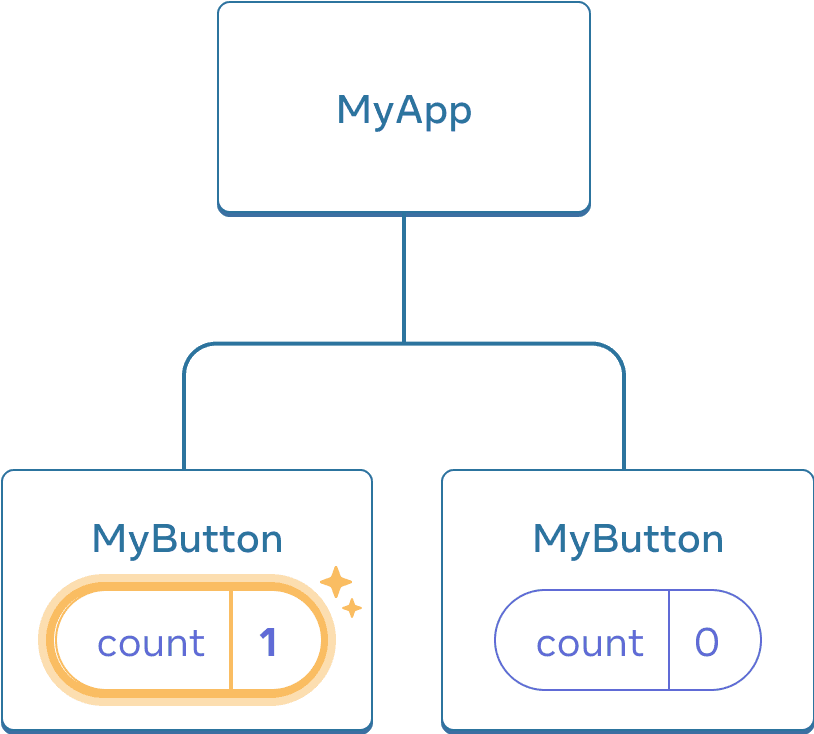
The first `MyButton` updates its `count` to `1`
However, often you’ll need components to _share data and always update together_.
To make both `MyButton` components display the same `count` and update together, you need to move the state from the individual buttons “upwards” to the closest component containing all of them.
In this example, it is `MyApp`:
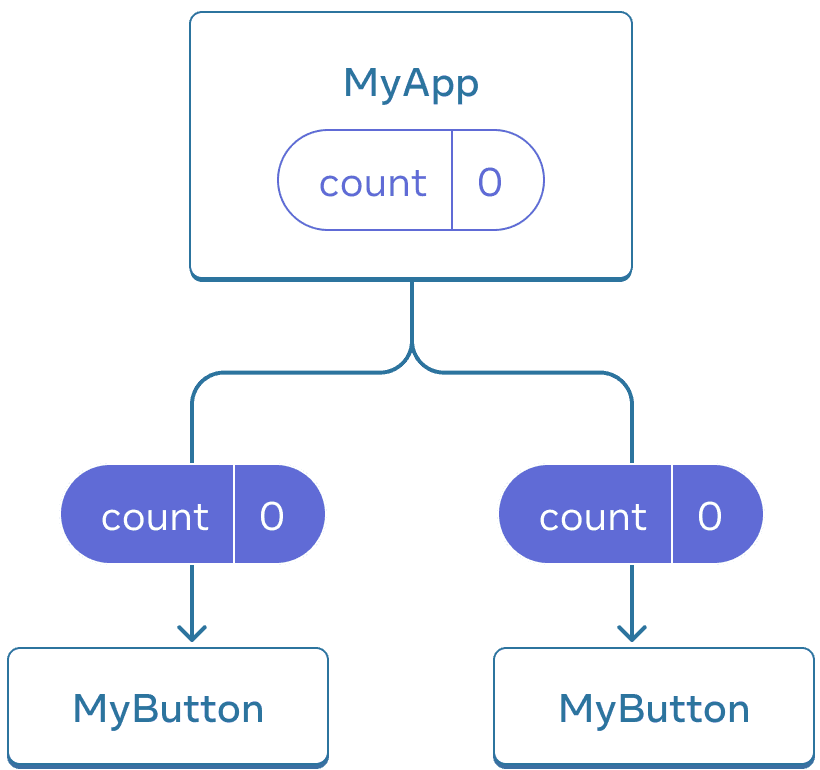
Initially, `MyApp`’s `count` state is `0` and is passed down to both children
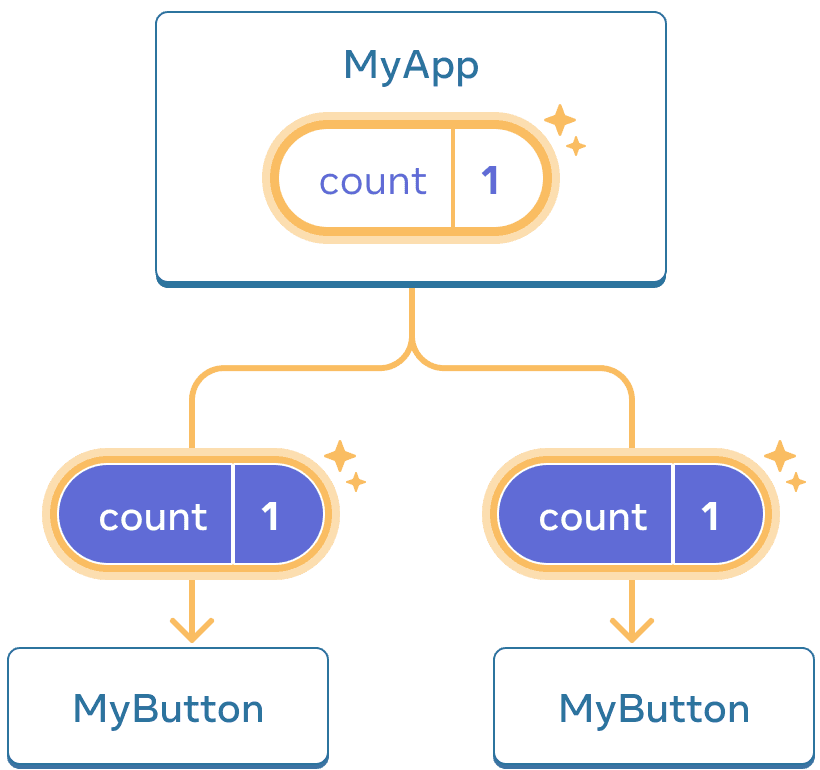
On click, `MyApp` updates its `count` state to `1` and passes it down to both children
Now when you click either button, the `count` in `MyApp` will change, which will change both of the counts in `MyButton`. Here’s how you can express this in code.
First, _move the state up_ from `MyButton` into `MyApp`:
```javascript
export default function MyApp() {
const [count, setCount] = useState(0);
function handleClick() {
setCount(count + 1);
}
return (
Counters that update separately
);
}
function MyButton() {
// ... we're moving code from here ...
}
```
Then, _pass the state down_ from `MyApp` to each `MyButton`, together with the shared click handler. You can pass information to `MyButton` using the JSX curly braces, just like you previously did with built-in tags like ``:
```javascript
export default function MyApp() {
const [count, setCount] = useState(0);
function handleClick() {
setCount(count + 1);
}
return (
Counters that update together
);
}
```
The information you pass down like this is called _props_. Now the `MyApp` component contains the `count` state and the `handleClick` event handler, and _passes both of them down as props_ to each of the buttons.
Finally, change `MyButton` to _read_ the props you have passed from its parent component:
```javascript
function MyButton({ count, onClick }) {
return (
);
}
```
When you click the button, the `onClick` handler fires. Each button’s `onClick` prop was set to the `handleClick` function inside `MyApp`, so the code inside of it runs. That code calls `setCount(count + 1)`, incrementing the `count` state variable. The new `count` value is passed as a prop to each button, so they all show the new value. This is called “lifting state up”. By moving state up, you’ve shared it between components.
```javascript
import { useState } from 'react';
export default function MyApp() {
const [count, setCount] = useState(0);
function handleClick() {
setCount(count + 1);
}
return (
Counters that update together
);
}
function MyButton({ count, onClick }) {
return (
);
}
```
## Next Steps[](https://react.dev/learn#next-steps "Link for Next Steps ")
By now, you know the basics of how to write React code!
Check out the [Tutorial](https://react.dev/learn/tutorial-tic-tac-toe) to put them into practice and build your first mini-app with React.